
In a Google Play closed test, a tester’s work is not complete after clicking the participation link.
For affected new personal developer accounts, at least 12 testers must remain opted in for 14 consecutive days, and the developer should use actual test results when applying for production access.
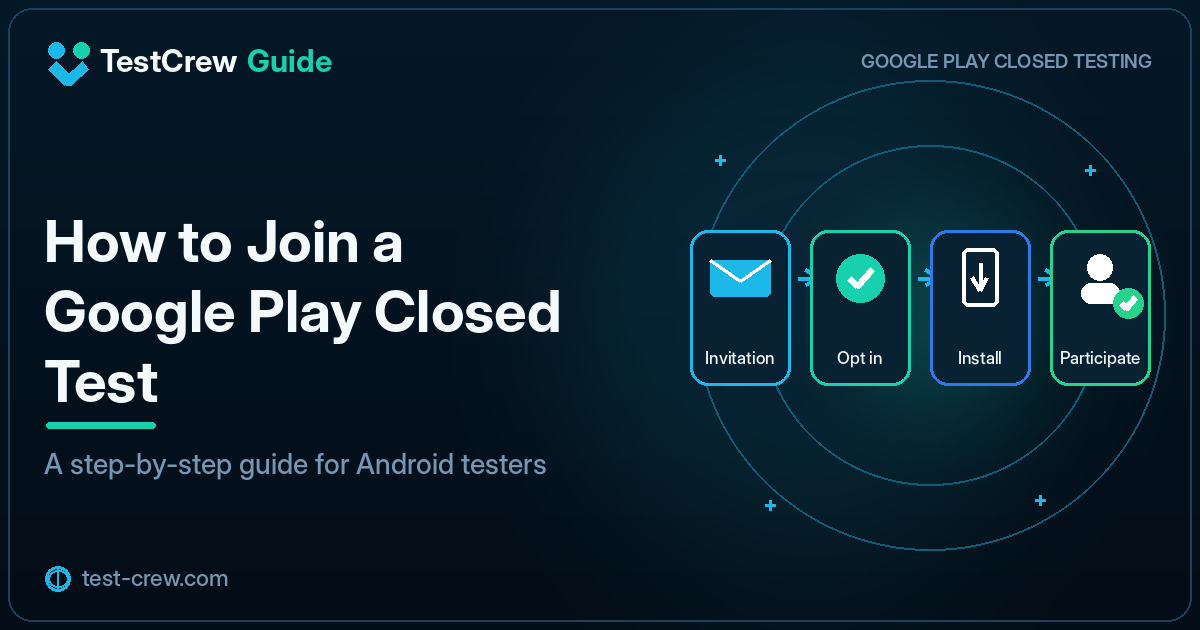
Complete process for testers
- Receive the participation link from the developer
- Open it with the Google account registered for the test
- Complete the action to join the test
- Install the app from Google Play
- Use the main features
- Share bugs and unclear interactions
- Install updated builds and verify fixes when requested
- Do not leave the test during the 14-day period
Step 1: Confirm the Google account
When several Google accounts are registered on an Android device, use the account that the developer added to the tester list.
Check the account in two places:
- The Google account active in the browser that opens the participation link
- The Google account selected in the Play Store
If these accounts differ, the participation page may say that the tester joined while the Play Store still does not allow installation.
Step 2: Complete opt-in
Open the URL provided by the developer and complete the test participation action.
After joining, the page should show the participation status and a link to the Play Store. A clear completion report to the developer could look like this:
Opt-in complete: Yes
Google account used: Registered tester account
Installation: Complete
First launch: Successful
If the participation link does not open, review Why You Cannot Join or Install a Closed-Test App before repeatedly changing accounts or URLs.
Step 3: Install the app
After opt-in, continue to the app’s Google Play page and install it.
If an APK or a build from another track is already installed, differences in signing or versionCode may prevent an update. Send the exact error message to the developer instead of paraphrasing it.
What should you test during the 14 days?
You do not need to use every feature for hours every day. However, do not install the app and leave it untouched. Test realistic usage scenarios.
Minimum checks
- First launch
- Sign-in and registration
- Permission requests
- The app’s main task
- Data entry, saving, and deletion
- Back navigation and screen transitions
- Behavior when the network connection is interrupted
- Behavior after closing and restarting the app
- Layout on a smaller screen or with larger system text
Checks to repeat after several days
- Whether saved data remains available
- Whether notifications arrive as intended
- Whether the signed-in state is preserved
- Whether repeated use causes a problem
- Whether an updated build fixes the reported issue
How to report feedback
A report that says only “It does not work” is difficult to diagnose. Include concrete details.
Screen: Profile save screen
Action: Selected an image and tapped Save
Actual result: The loading indicator continued and the screen did not change
Expected result: A save-complete screen should appear
Device: Pixel 8
Android: 15
Reproduction: 2 out of 2 attempts
When there is no problem, report what you checked.
I tested registration, sign-in, data saving, and restoration after restarting the app.
I did not find a major problem.
See What Feedback Should Closed Testers Provide? for a more complete checklist.
When an updated build is published
When the developer announces an update, install it through Google Play.
- Open the app’s Play Store page
- Check whether an Update button appears
- Confirm the app version after updating
- Repeat the action related to the fix
- Send the result to the developer
If the update does not appear, the problem may be the developer’s versionCode or track publication status rather than the tester’s device cache.
Can you uninstall the app during the test?
If the app is uninstalled accidentally, it may be possible to reinstall it with the same Google account as long as the tester has not left the test program.
Avoid these actions:
- Leaving the test program
- Rejoining with another Google account
- Keeping the app uninstalled for a long period without telling the developer
When unsure, ask the developer before changing the participation state.
What to do after 14 days
Remain in the test until the developer confirms completion.
There is no need to leave immediately when 14 days have passed. Play Console reporting and production-access preparation may not update at exactly the same time.
Tester checklist
- I used the registered Google account
- I completed opt-in
- I installed the app from Google Play
- I used the main features
- I reported issues with reproduction steps and device information
- I checked updated builds when requested
- I did not leave the test during the 14-day period
- I remained enrolled until the developer confirmed completion
Summary
A tester’s role is more than clicking a link.
- Join with the correct Google account
- Install the app from Google Play
- Use the app’s core features
- Report problems and improvement opportunities
- Verify updated builds
- Remain opted in for the 14-day period
When participating through TestCrew, also see How to Participate as a Tester on TestCrew.
Primary sources
Official references
Check the linked official documentation before a production release.
Continue reading
Related guides
TestCrew
Find testers through mutual testing
Test other Android apps, provide useful feedback, and use earned credits to recruit testers for your own Google Play closed test.
Learn how TestCrew works